Find what you need
| What you want to do | Where to read |
|---|---|
| Watch pro games | 3. Watch |
| Throw and try things yourself | 4. Throw and try |
| Record a game or a video | 5. Record a game |
| Make practice problems (scenarios) to give to others | 6. Make a scenario |
| Save and share | 7. Save and share |
| Use it on a stream (OBS) | 8. Streaming |
| Play against the computer | How to play Match mode (separate page) |
1. Getting started
CurlFlux is a curling tactics board. It uses World Curling's official dimensions and physics to reproduce how stones slide, curl and collide.
- Free, no sign-up. It runs in the browser alone (phones, tablets and computers)
- You can replay real games throw by throw, from the Olympics, the World Championships, the Japan Championships and more
- From the position you are watching, you can throw yourself and try a different shot
- You can also use it to record games, make scenarios and stream (OBS)
- For a quick look first, there is a 40-second intro video (YouTube)
The first screen (welcome)
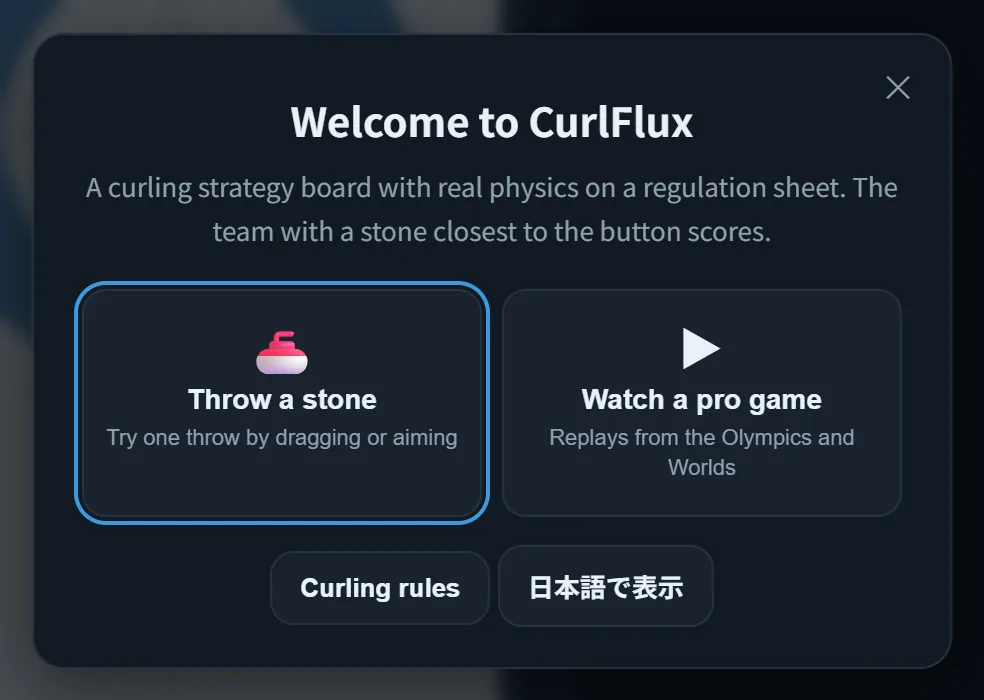
The first time you open CurlFlux, the welcome screen appears.
- Throw a stone: try a throw right away
- Watch a pro game: open a replay of a real game
- Curling rules: go to the rules guide
- English: switch the display to English
Tap the logo at the top left to open this screen again at any time.
2. The screen
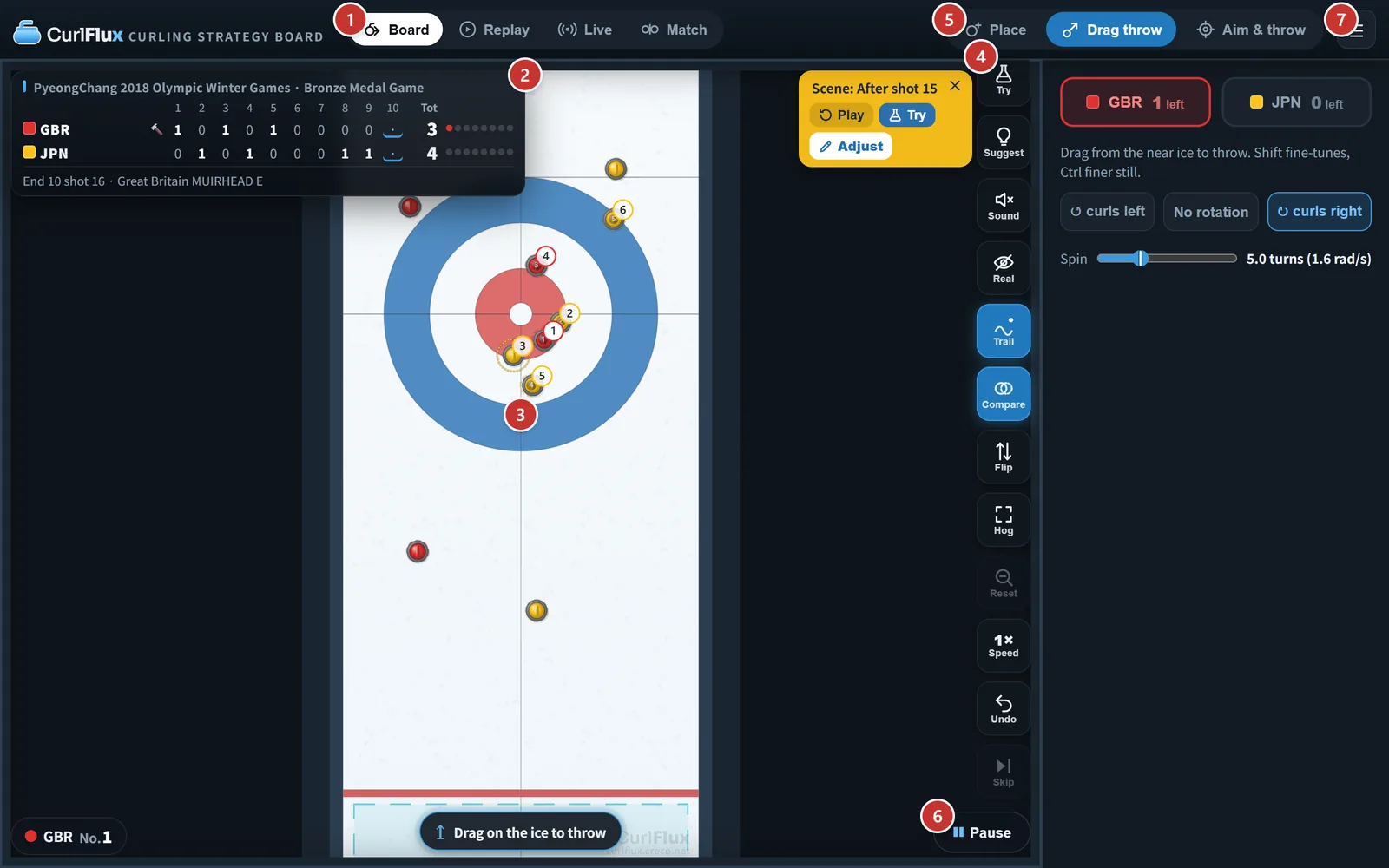
| Where | What it does | |
|---|---|---|
| ① | Top, upper row | Switches between Board / Replay / Live / Match |
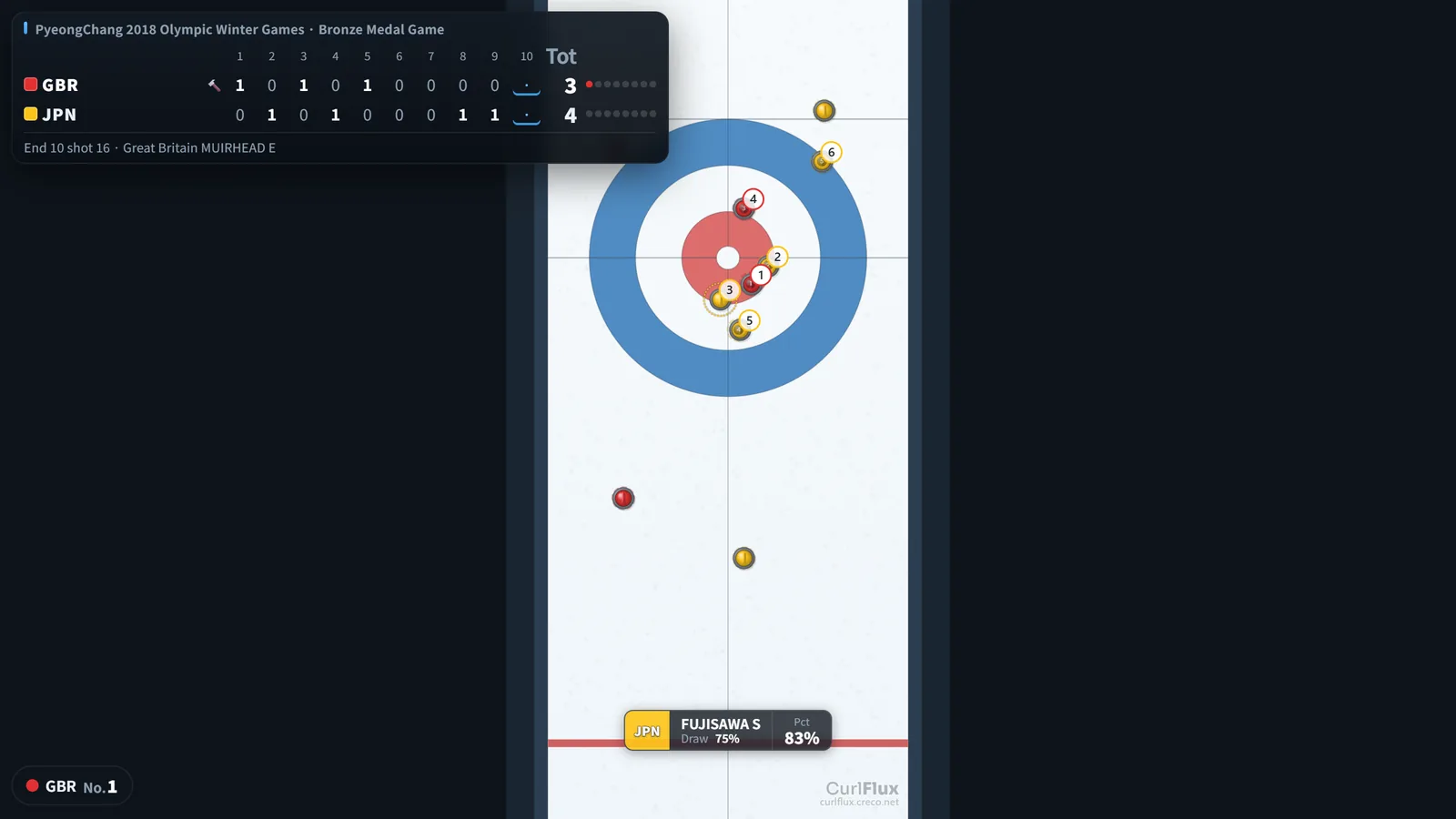
| ② | Top left | Scoreboard. Points per end, totals, hammer, stones left and the next thrower. Tap to edit |
| ③ | Center | Board. Stones in the house are numbered from closest to farthest, and stones that score get a white circle |
| ④ | Right of the board (bottom right on phones) | Button row (Try, Suggest, Sound, Real, Trail, Compare, Captions, Flip, View, Zoom, Speed, Undo, Skip) |
| ⑤ | Top, lower row (the "Control panel" at the very bottom on phones) | Switches how you throw on Board (Place / Drag throw / Aim & throw), with its control panel |
| ⑥ | Very bottom | Player bar (shown when there is a record; collapses to a small "▶ Play") |
| ⑦ | ☰ at the top right | Menu (Game, Rules, History, Library, Save & share, Settings, My page, Info) |
On a wide screen, ① and ⑤ sit on the same row at the top (① on the left, ⑤ on the right).
The layout adapts to the screen width. On phones, some panels are collapsed.
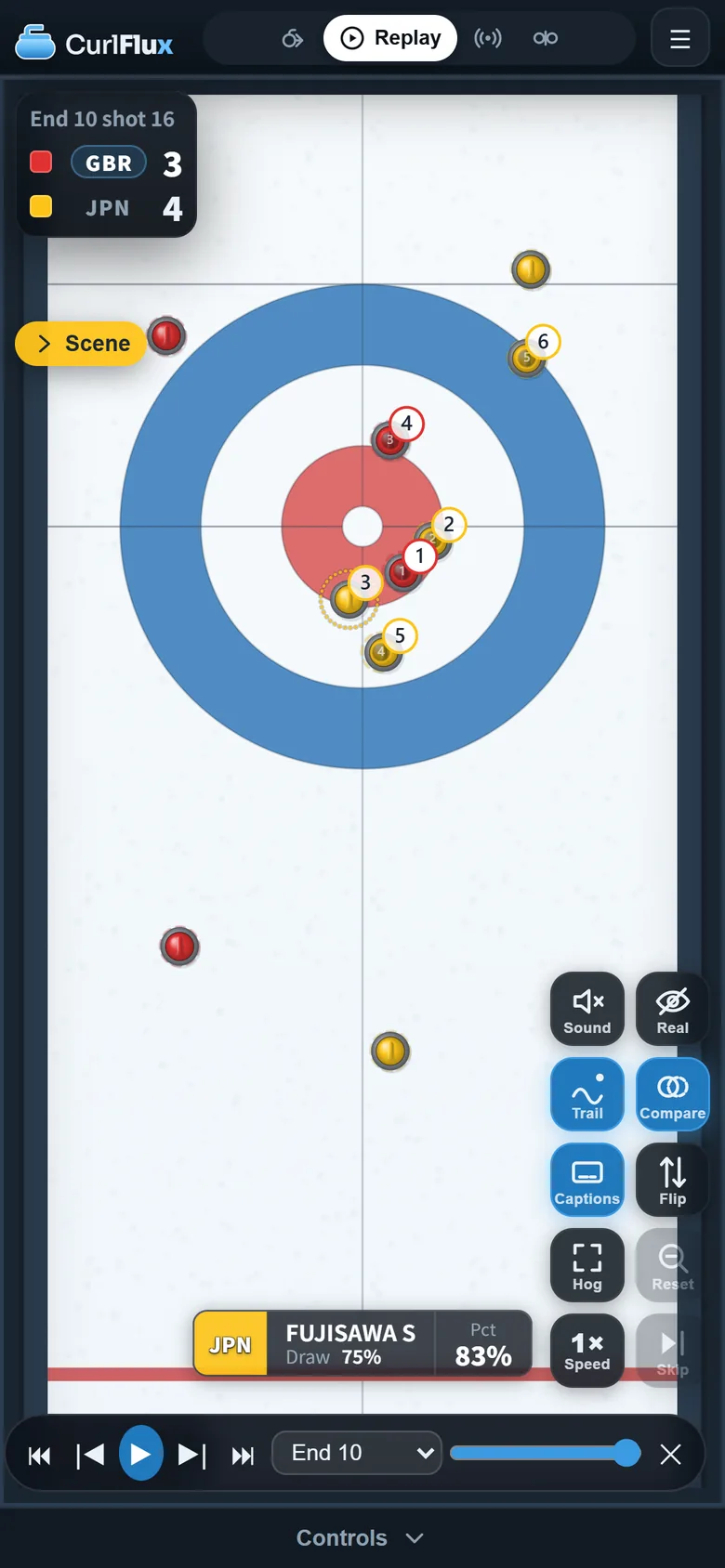
2-1. Zoom and view
- Zoom with the mouse wheel or two fingers; pan by dragging with the middle button or two fingers
- The View button cycles Full → Hog → House → Eye ⌨ V
- Random position in Build a position brings in one position from the library of real games — handy for practice or for setting a problem
- Turn on Draw on the board in Settings to explain tactics with lines and arrows. What you draw is not saved and disappears when you move to another position
- In Place, drag a stone out of the stone tray behind the back line to put it on the ice; drag it off the sheet to put it back
- Tap the time chip that appears at the bottom left after a throw to add the Back-to-Hog time (the split time over the 8.230 m from the back line to the near hog line) — the first read a sweeper takes
- Hover a stone (tap it on a phone) to see its details: which stone of the end it is and who threw it, its rank in the house, the distance to the button, the lines it sits on, how much of it is visible from the hack, and whether it is protected in the free guard zone (not shown in Real mode)
- Flip swaps top and bottom and puts the thrower at the top (the same orientation as TV coverage; in Eye view it switches to the skip’s view) ⌨ F
- "Reset" at the bottom right, or a middle-button click, returns to the automatic view
2-2. Eye view (seen from the hack)
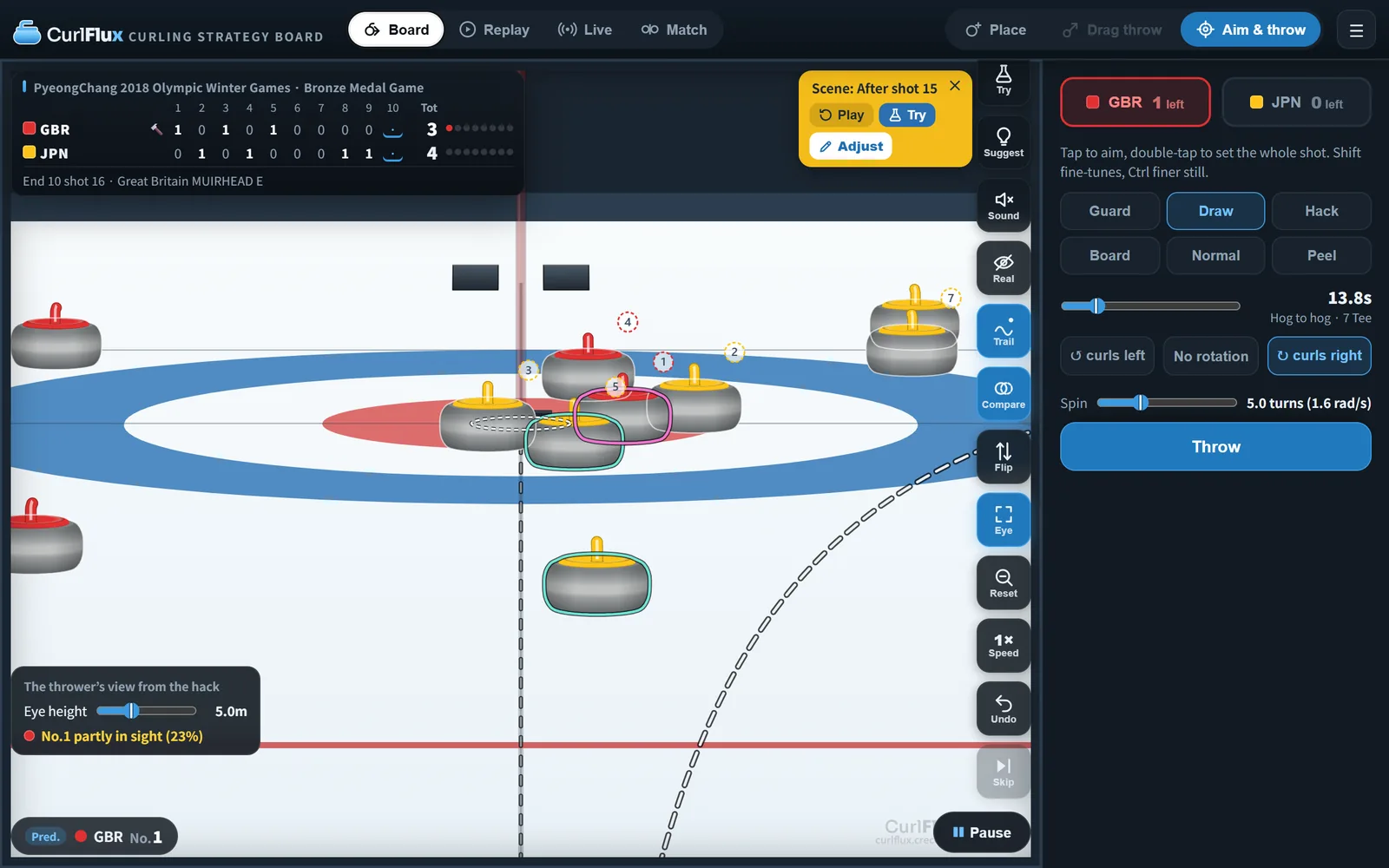
Set the view to "Eye" to see the sheet as the thrower sees it from the hack. It is the same position as the overhead board, so you can check how the stones line up and hide each other.
- In Eye view, Flip turns you around to the skip’s view: from behind the house, looking back towards the thrower ⌨ F
- Change the viewpoint with "Eye height" on the card at the bottom left of the board (0.3 to 15 m; the default is 5 m for the thrower and 2 m for the skip, and a double-click returns to it) ⌨ ↑ / ↓
- The card shows how much of No.1 (the stone closest to the centre of the house) can be seen in a straight line from the hack ("No.1 in sight", "No.1 partly in sight (48%)", "No.1 hidden"). It is the share of the stone's width not hidden by stones in front, so it does not change with the eye height. It updates when the stones come to rest
- On the board, No.1 is outlined in magenta and the stones hiding it in cyan. Every other stone gets a faint white outline, so you can still see where a stone hidden behind another sits (none are shown while stones are moving or in Real). Stones in the house get the same numbered circles as in the overhead view
- The dotted white ring on the ice marks the button (the centre of the house). At an eye height of 2.0 m or lower, a ▼ above it marks the button too (the ▼ is not shown in the skip’s view; neither the ring nor the ▼ is shown while stones are moving or in Real)
- Placement guides, the mixed doubles positioned-stone markers and sponsor images are drawn on the ice in perspective too (like real ice advertising, a sponsor image is turned 180° between the thrower's view and the skip's view)
- In Aim & throw, dragging on the board moves the broom in any direction, just as in the overhead views (hold Shift for fine control). Place also works in Eye view: press any stone you can see to grab it, and stones are placed or moved to the point on the ice you point at, so you can line them up with the house (the stone tray isn't shown, so tap to place). Drag throw isn't available because the near ice isn't on screen; switching to Eye view moves you to Aim & throw, and switching back returns you to Drag throw
- Zoom and pan with the wheel or two fingers; "Reset" or a middle-button click returns to the original framing
3. Watch (replays and the library)
3-1. Library
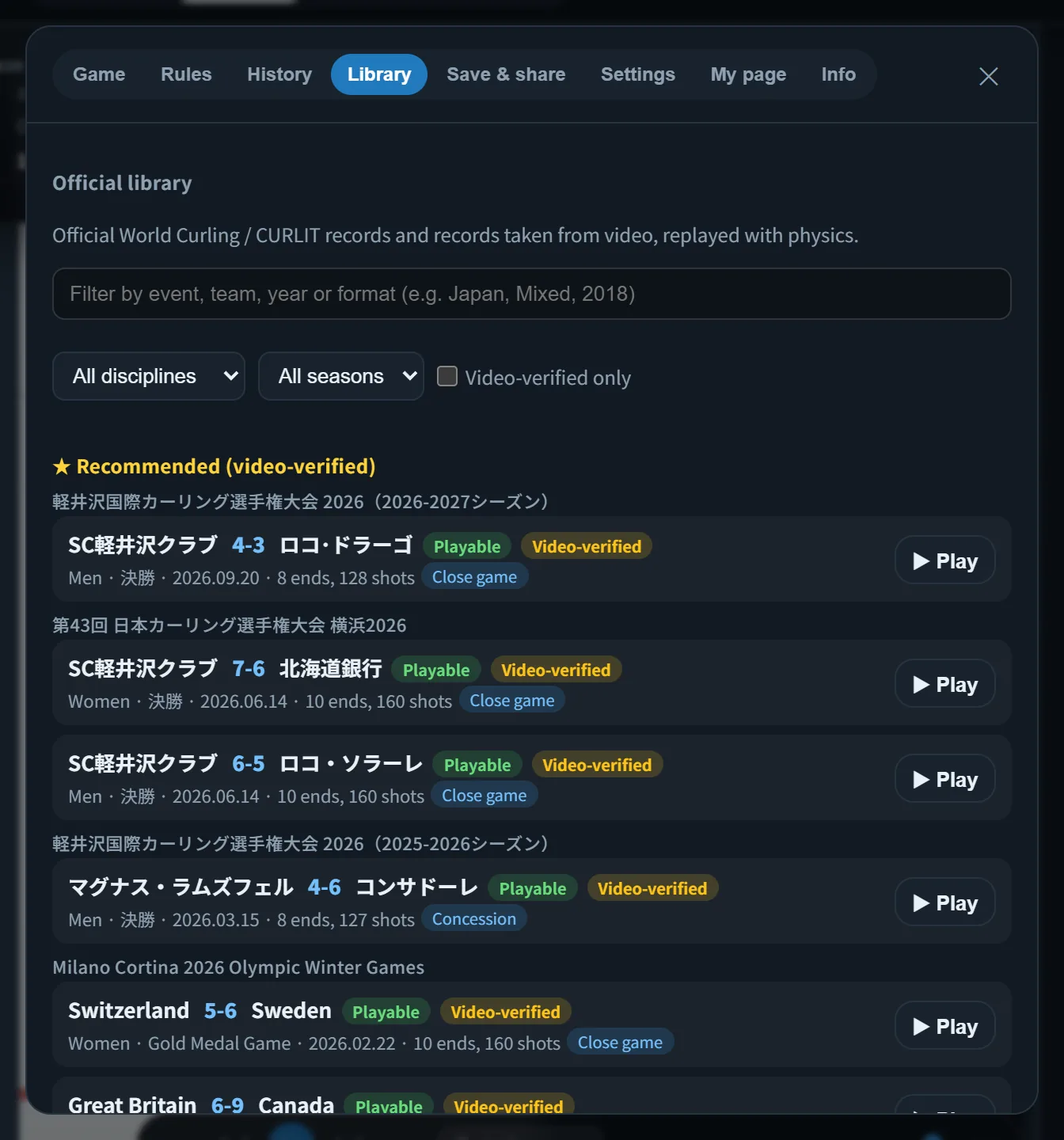
The "Library" in the menu lists real games. It holds many events, including the Winter Olympics, the World Championships, the World Juniors, the Pan Continental Championships, the World Mixed Doubles Championship, the Japan Championships, the Japan national team trials and the Karuizawa International.
- ★ Recommended (video-verified) games come first, followed by sections for each event
- Search by event, team or year, and filter by discipline, season and "Video-verified only"
- For events with both men's and women's games, each game's line starts with its discipline (Men, Women and so on)
- Each game has badges such as "Playable" (a record reproduced by physics) or "Video-verified" (every throw checked against video), plus markers for four-player games, concessions, extra ends, games involving Japan and more
- "Play" runs the physics-reproduced game from the start
You can also see the list on the /library/ page.
3-2. Player bar
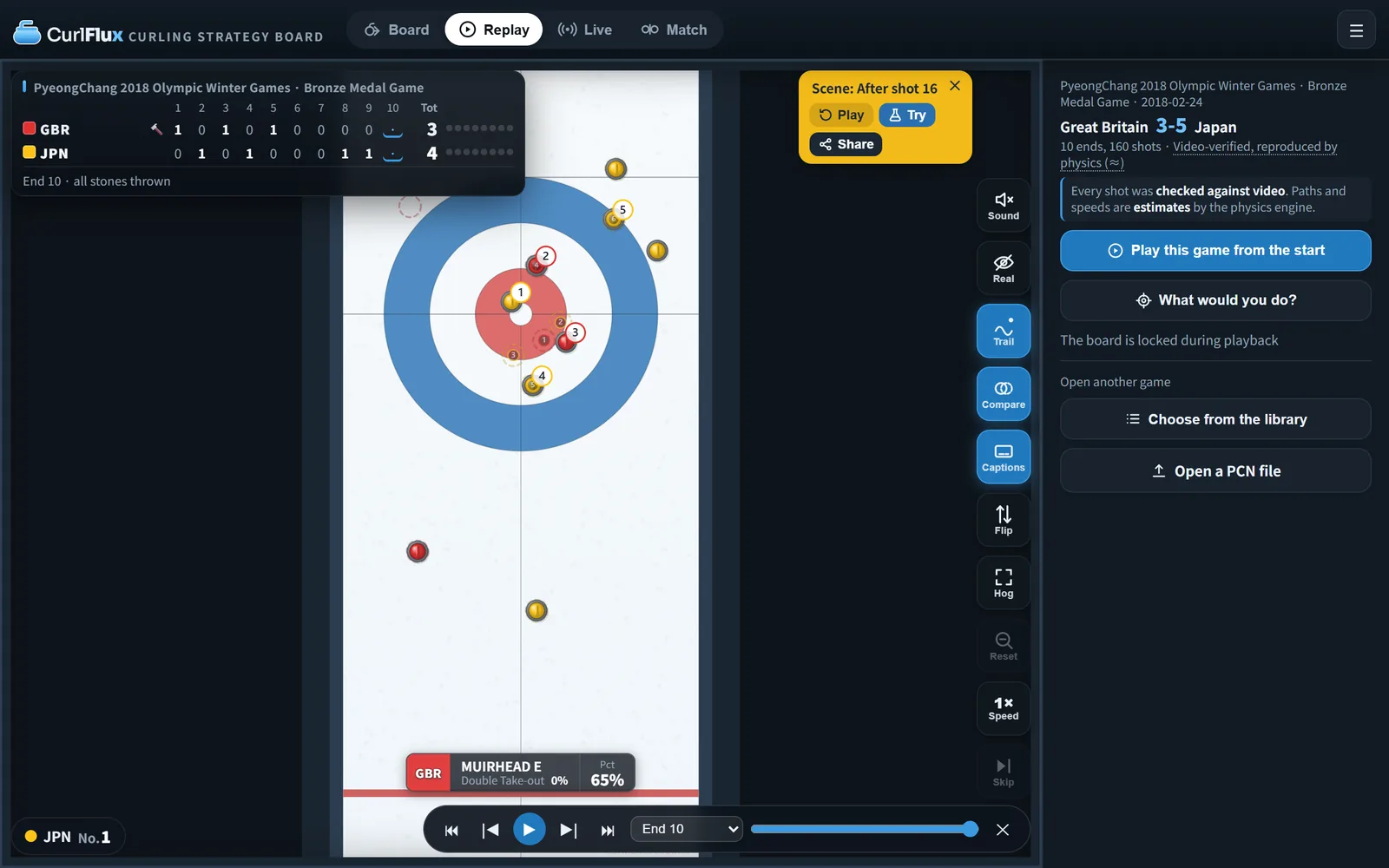
| Control | What it does | ⌨ |
|---|---|---|
| ⏮ ⏭ | First / latest scene | Home / End |
| |◀ ▶| | Previous / next scene | ← / → |
| ▶ | Play continuously / pause | Space |
| Slider | Go to any scene | |
| End selector ("End 10") | Jump to the start of that end | |
| Speed | Playback speed | + / - |
| Skip | Skip the animation of moving stones | K |
| ✕ | Collapse the player bar into a small "▶ Play" | P |
For a record that begins by placing stones, "first" means the board after they are placed. A scenario starts from its placed board, and mixed doubles starts from the two pre-placed stones (the end selector works the same way). Switching between Replay and Board never goes back before that board.
In continuous play, a shot that follows a time-out is preceded by "Time-out: …" and a short pause (for games whose record includes time-outs). Opening the menu stops continuous play (a stone already on its way finishes its run).
3-3. Buttons that make games easier to follow
- Trail: shows the lines the stones travelled ⌨ T. Only the line of the most recent throw is thick
- Compare: overlays the positions before the throw as dotted outlines and the removed stones as × ⌨ C
- Captions: broadcast-style captions (thrower, shot, rating, and that player's success rate so far in the game). At the end of an end and at the end of the game, they show the score plus steals, shot success, and success rates for draws and take-outs ⌨ J
- Real: hides aids such as ranking numbers, the No.1 sight line and Compare, so you read the position as it looks (4-6) ⌨ R
- Flip, View and Zoom (see 2-1 above)
3-4. Links to positions
Library games have short links.
?replay=<game>opens that game; add#s=<number>to start from that position
(for example/?replay=og2022-women-final-jpn-gbr#s=42)- Copy one with "Share…" on the Save & share tab (for a library game, it's the short link with
#s=for the position you are watching)
3-5. Try from the position you are watching
- During a replay, press "Try" in the scene display on the board. You go back to just before that throw and can throw yourself without changing the record
- Switch to "Board" at the top to take over the record, throw the rest of the game or edit it
- What would you do? (under "▶ Play the replay" and in the control panel) stops just before three key moments of the game; throw once yourself, then compare with the shot that was actually played (type, rating, and which came out better)
4. Throw and try
On Board, the control panel at the top (at the very bottom on phones) switches between three ways to throw ⌨ 1 / 2 / 3
- "Aim & throw" is the closest to a real game. You choose the weight and rotation and throw at the target the skip has set
- For a quick try, use "Drag throw". You point with your finger straight at where the stone should stop
4-1. Drag throw (set the direction and the weight)
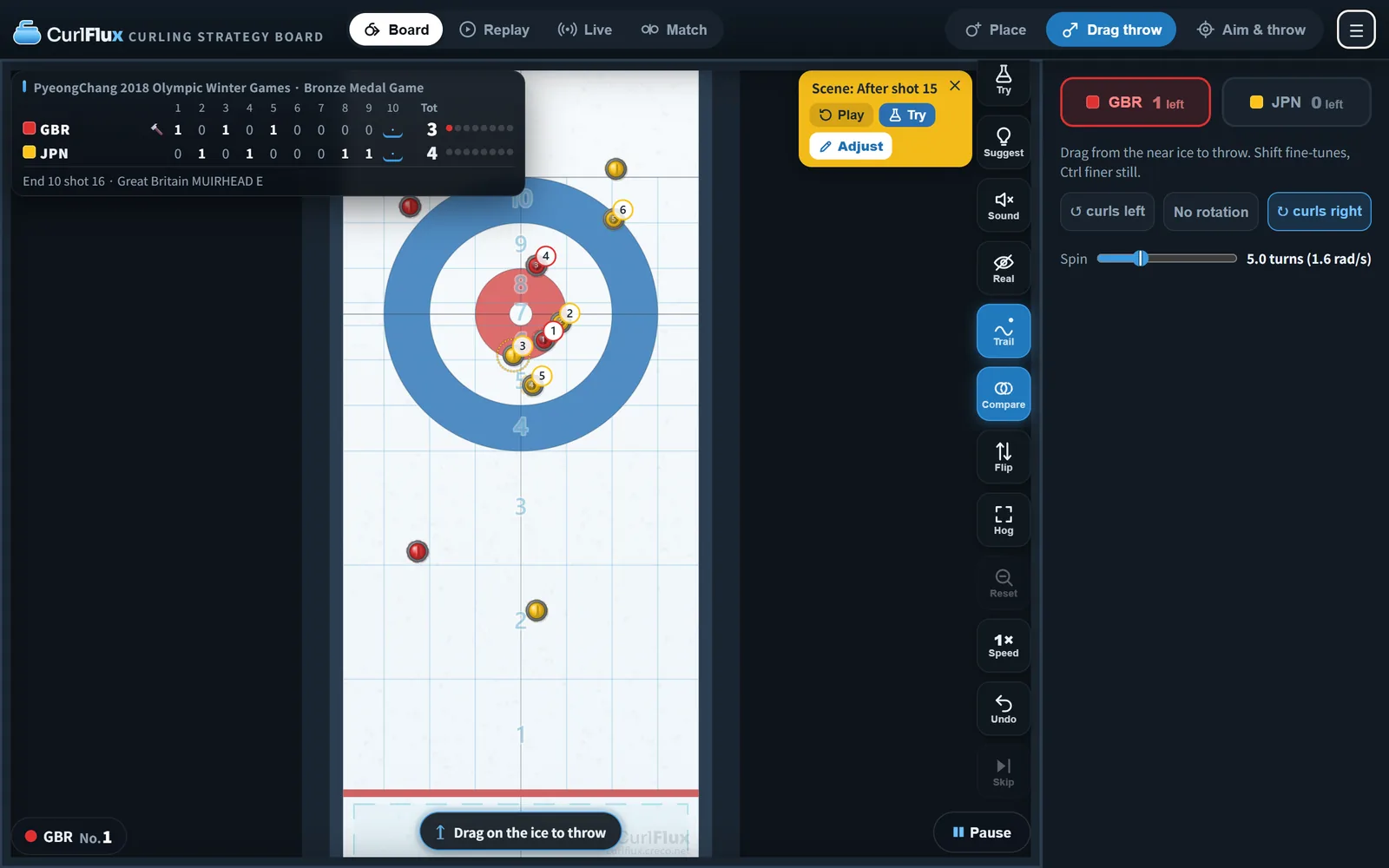
Drag from the ice near you to throw from the hack.
- Within the sheet, the arrow tip is where the stone would stop with no turn (the strength is set automatically from the distance)
- With a turn, the stone curls off that line and stops to the side (the dotted line while you drag shows the real path)
- Drag past the back line and it switches from a stopping position to setting the strength (hog-to-hog time). The farther you drag, the harder the throw; just before the far edge of the screen you reach the hardest peel (7 seconds)
- While you drag, the weight name and hog-to-hog time are shown
- A drag that would not reach the hog line is cancelled
- Hold Shift (or Alt) to slow the movement to 1/5 for fine adjustment. Ctrl makes it finer still (on a computer)
- While you drag, the movement of every stone and the stone ranking after the throw are predicted and shown
4-2. Aim & throw (closest to a real game)
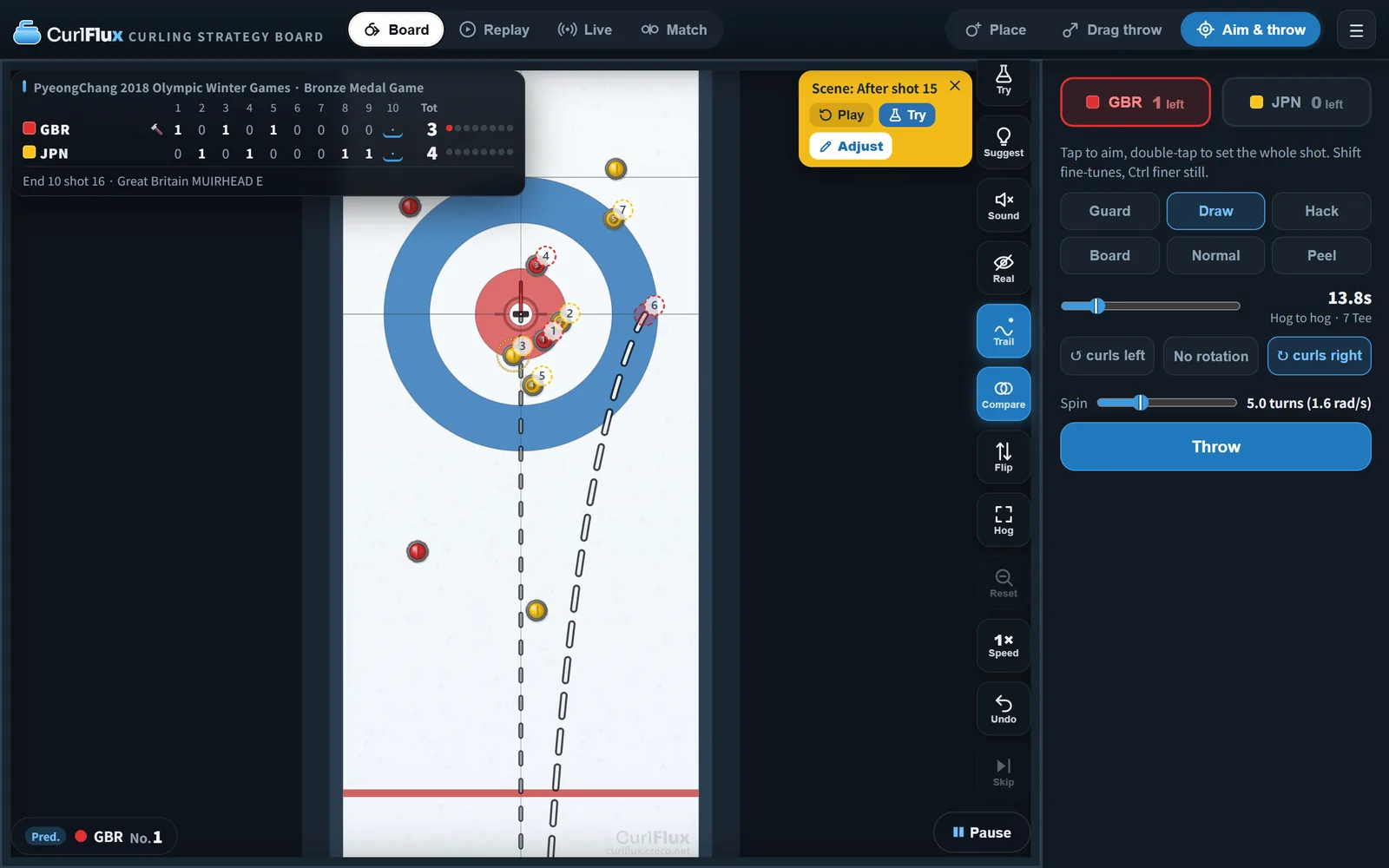
In a real game, the skip holds the brush (broom) in the house to show the target, and the thrower aims there, choosing the weight and rotation. "Aim & throw" follows the same flow.
- Tap the target (the broom)
- Choose the strength: Guard, Draw, Hack, Board, Normal, Peel, or use the slider (hog-to-hog time)
- Choose the rotation: Curls left, No rotation, Curls right ⌨ Q / W / E. The "Spin" slider sets the amount of rotation as the number of turns the stone makes before it stops (for example, 5 turns). It starts at the ice setting's Turns, and changing the weight doesn't change the number of turns
- "Throw" ⌨ Enter
A double tap sets up the whole shot: tap the ice to draw to that spot, or tap a stone to hit it with normal weight; the broom, the weight and the rotation are set at once, and the rotation follows which side of the centre you tapped. Then fine-tune with the broom or the slider and throw (on a past position the app enters "Try" first). Where "Suggest" (4-7) tells you what to throw, the double tap throws what you point at
With the view set to "Eye" (2-2), you can aim by moving the broom left or right while looking from the hack. The broom is drawn to real size (the head is about 20 cm wide, roughly two-thirds of a stone's diameter), so you can shift your aim by "a broom head" the way players do.
4-3. Place
Tap to place a stone, drag to move it, select it to delete it. Use it to set up any position. When recording a game, the mixed doubles placed stones can be put in their standard positions (5-6).
- Turn on Guidelines (Settings) to overlay faint horizontal lines with numbers at the draw zone boundaries (1–10) and vertical lines at the tangents of the house. For what the zones mean, see "Weight" in the rules guide
- "Delete selected", "Clear all"
4-4. Throwing order
Throws alternate automatically (the team without the hammer throws first). Use a team button to swap the next throw only.
4-5. Try (try things without changing the record)
Press "Try" to throw, place and undo freely without saving anything to the record. There are no alternating throws or end-of-end rules either. ⌨ S
- Keep a good result in the record with the update button ⌨ E
- When you finish, the board returns to the recorded position
- If you throw or place a stone in a past position, this mode turns on automatically so the record is not broken
4-6. Real
Hides the prediction lines, numbers, strength display and try-mode traces, so you throw with the same information as in real curling. ⌨ R
It also works in Replay and Live: hide the ranking numbers and the No.1 sight line and read the position as it looks.
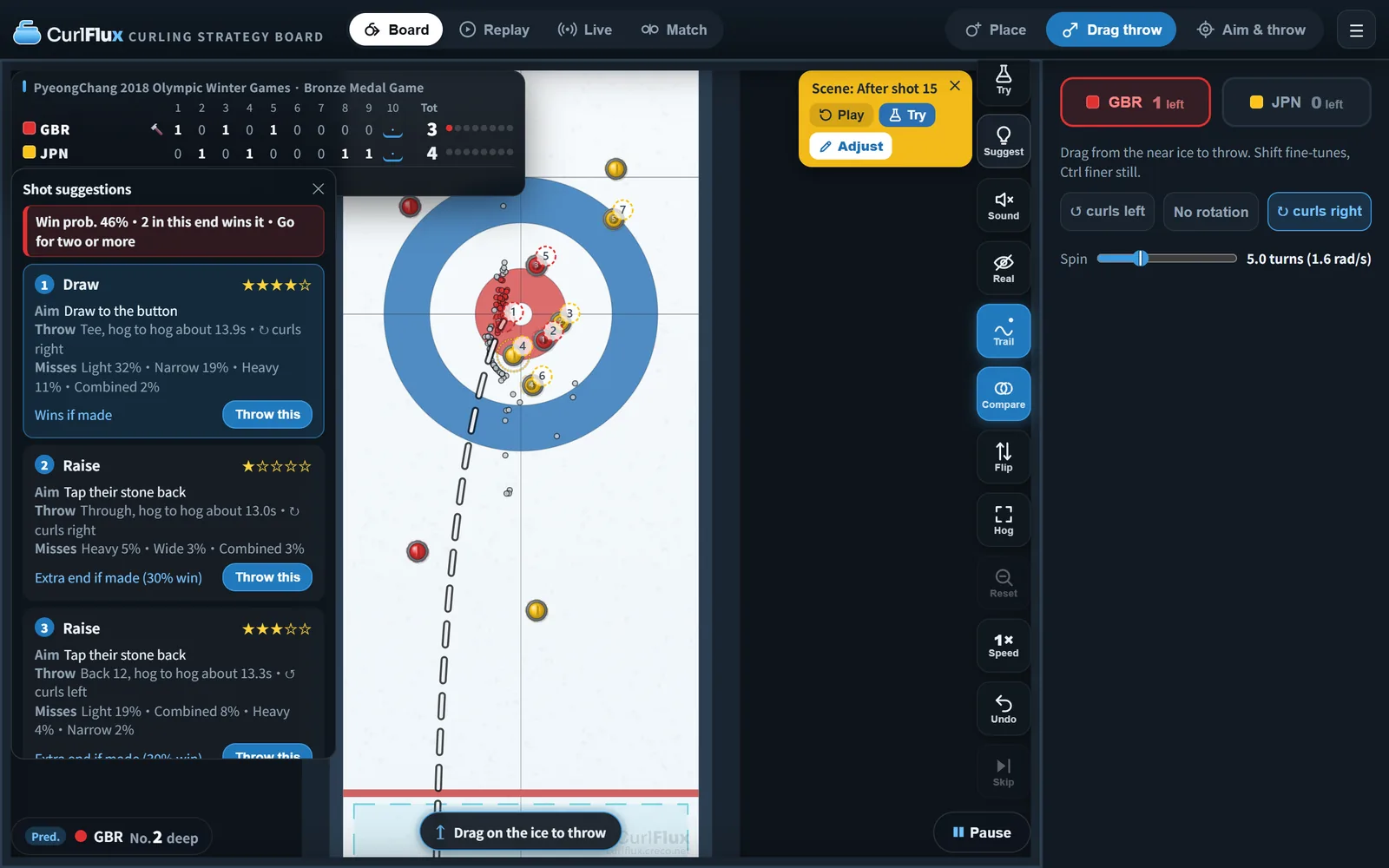
4-7. Suggest (shot candidates)
"Suggest" works out up to three shots that look effective on the current board. ⌨ G
- It shows the position's win probability and the goal for this end (attack / defend). Win probability is based on a table built from World Curling's official records
- Hover over a candidate to preview its movement; "Throw this" throws it right away
- Besides the standard shots (draws, takeouts and so on), it throws a few hundred combinations of aim, weight and turn with the physics engine to find candidates (a path into the house that touches no stone, when a blank is worth more a hit that leaves the house empty, and run-backs that push a stone in front to remove theirs), picking the ones that hold up if the throw is a little off
- Up to three candidates are listed in order of the win probability after the throw (averaged over misses too). When the gap is within the noise of the estimate, the easier shot (the higher success rate) comes first. It is estimated from world championship boards using the stones left, the hammer, the score and the board (where the shot stone is and who owns the centre guard), so guards and peels early in an end, and blanks (clearing the house to keep the hammer), are valued too. It is built for four-player curling
- In the final end the result decides the game, so it shows the chance to win instead. Only for a shot that plays for a tie (an extra end is likelier than a win) does it show the win probability including the extra end and the chance of one
- For the last stone of each end it shows what happens if the shot is made (scores 1 if made, blank if made and so on, with the win probability after it; in the final end wins if made, extra end if made with the extra end's win probability, or loses even if made). The last stone is worth only the score it leaves, so the same score means the same win probability. Whether it is made is what the stars (hover for the success rate) tell you
- The difficulty guide (★1 to 5) comes from the success rate when the shot is rethrown with elite players' errors (weight and direction errors measured from last-stone draws at world championships and the Olympics). Hover over the stars to see the rate. A draw succeeds within two stone widths of the target, a hit when it removes the stone it aims at
- "Misses" breaks the misses down by cause (heavy, light, narrow, wide; narrow is inside the broom toward the curl, wide is outside it, and combined means weight and direction errors added up)
- The dots on the board show where the shooter stopped in those rethrows (team color = success, grey = miss). They sit under the trajectory and the predicted circles, so nothing you need to read is hidden
- It takes a few seconds to work out (longer on a crowded board)
4-8. Undo
"Undo" takes back one move (it removes the shot from the record and rolls back the throwing order) ⌨ Z / Ctrl+Z
4-9. Rules and ice settings
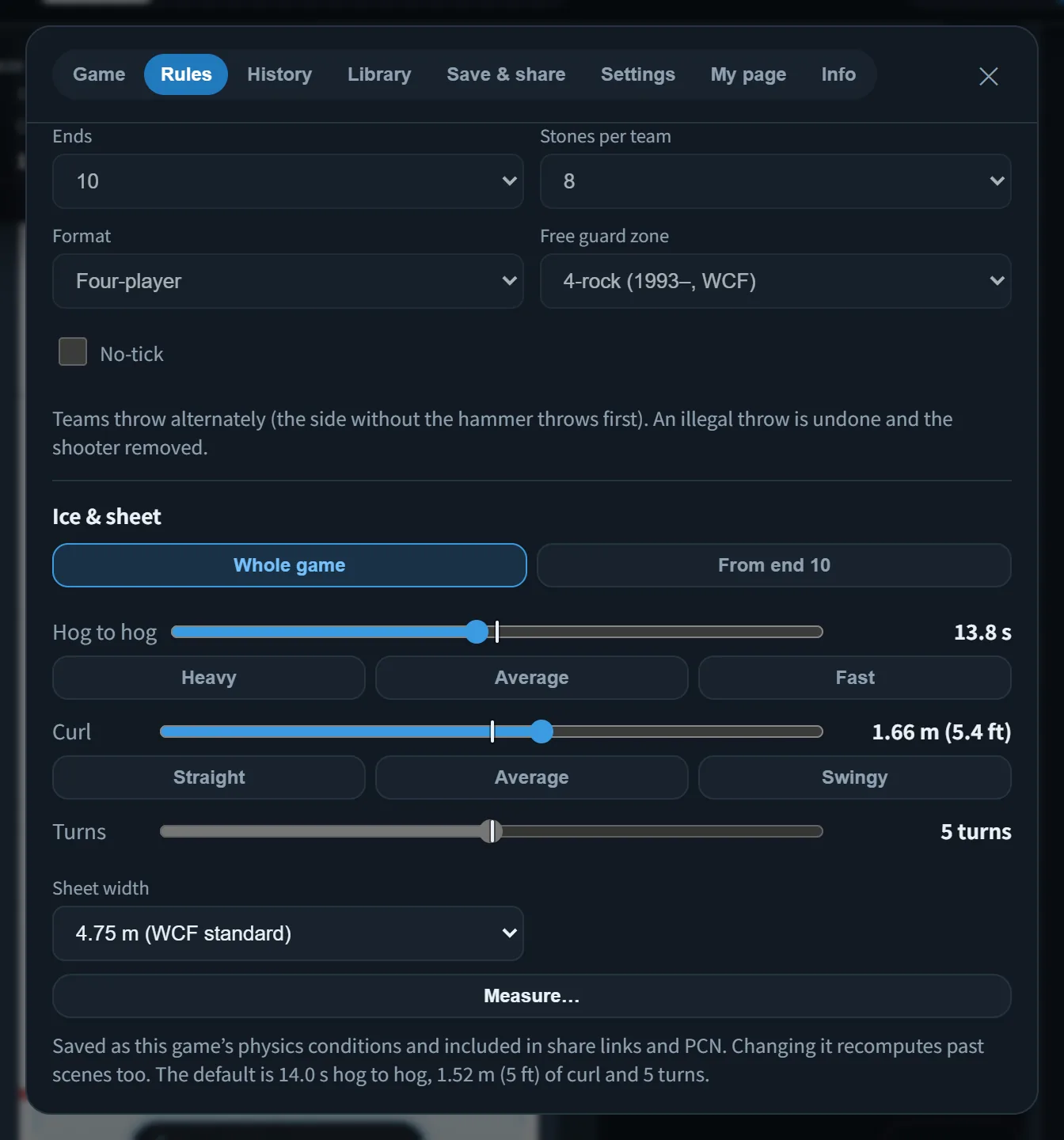
On the "Rules" tab of the menu:
- Format: Four-player / Mixed doubles, number of ends, stones per team
- Free guard zone: None / 3-rock (mixed doubles) / 4-rock / 5-rock, and No-tick
- Ice conditions: hog-to-hog time (ice speed), amount of curl, turns and sheet width (4.75 m / 4.28 m). Hog-to-hog time and curl each have their own slider. Curl is how far a draw to the tee, aimed down the center line, ends up to the side of the aim line. Turns is the standard number of times a stone rotates before it stops, used for aimed throws, the CPU and suggestions. The defaults are 14.0 s hog-to-hog, 1.52 m (5 ft) of curl and 5 turns, and each slider has its default in the middle (hog-to-hog 11–17 s, curl 0.64–2.4 m, turns 2.5–7.5). The buttons below them ("Heavy", "Average", "Fast" = 13, 14 and 15 s; "Straight", "Average", "Swingy" = 4, 5 and 6 ft, or 1.22, 1.52 and 1.83 m) move the slider to a typical value. To measure from video, use "Measure…" (5-8)
A throw that breaks a rule rolls the board back and removes the shooter. Once a game has a record, its rules can't be changed (the ice and sheet can).
5. Record a game
5-1. Scoreboard and game info
- Scoreboard (tap to edit): points per end, totals, hammer, stones left and the next thrower
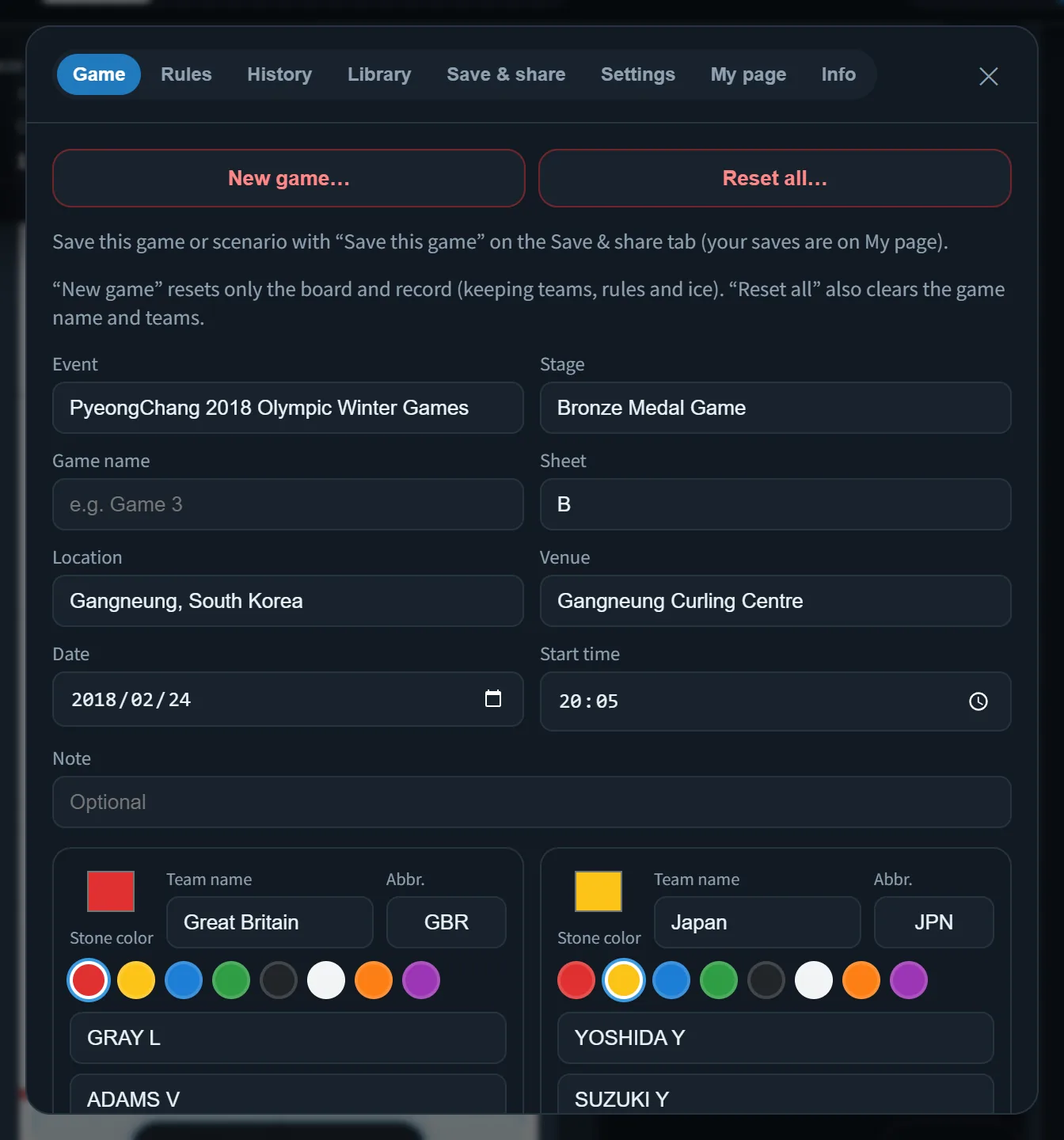
- Game info (the "Game" tab of the menu): event, stage, game name, sheet, location (city), venue, date, start time and note, plus team name, abbreviation, stone color, player names (Lead to Skip), coach, reserve, LSD (optional) and the first-end hammer. With both teams' LSD entered, the app shows which team has the smaller LSD (it chooses the first-end hammer). The hammer is locked once shots are recorded
- Stone colors are red, yellow, blue, green, black, white, orange and purple, or any color you choose
5-2. Finishing an end
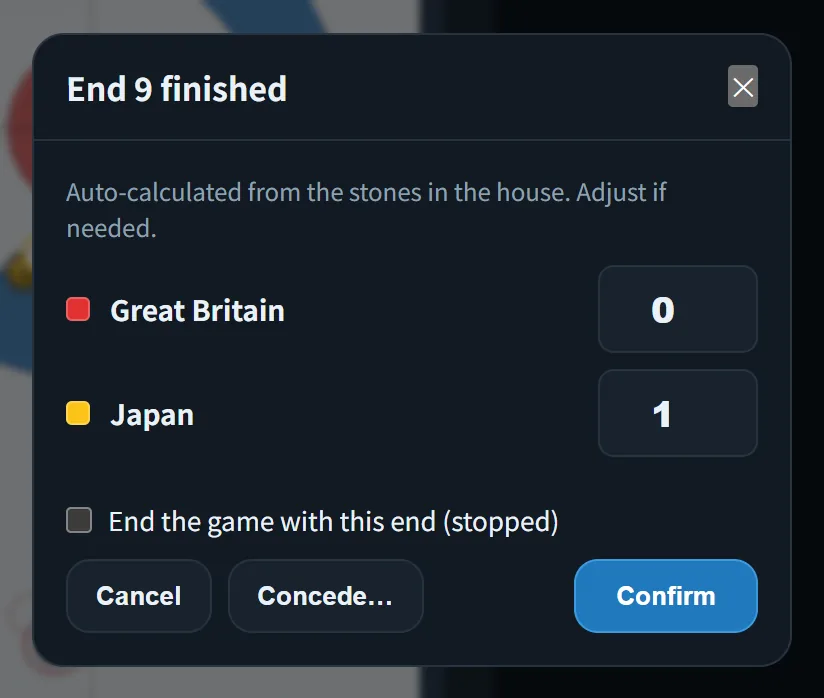
When the last stone stops, "Finish end" opens automatically. It calculates the score automatically from the stones in the house, and you can correct it and confirm.
- A blank end keeps the hammer, and a tie after the scheduled ends goes to an extra end
- After confirming, ↩ takes you back to the board of the last stone
5-3. Recording shots
Each shot records the thrower, the shot type (estimated automatically) and the hog-to-hog time, and you can give it a 0–4 rating, the same as World Curling.
5-4. Concessions, stopped games, passes and violations
- Concede: from "Game progress" in Place mode, or from Finish end
- Stopped game: for ending before the scheduled ends, for example because of a time limit. Use "End the game with this end" in Finish end
- Pass: records a throw that doesn't change the board (a through), such as a throw that went through the house
- Hog line violation / burned stone: in History, set that shot's type to "Not considered". The throw is voided and the board goes back
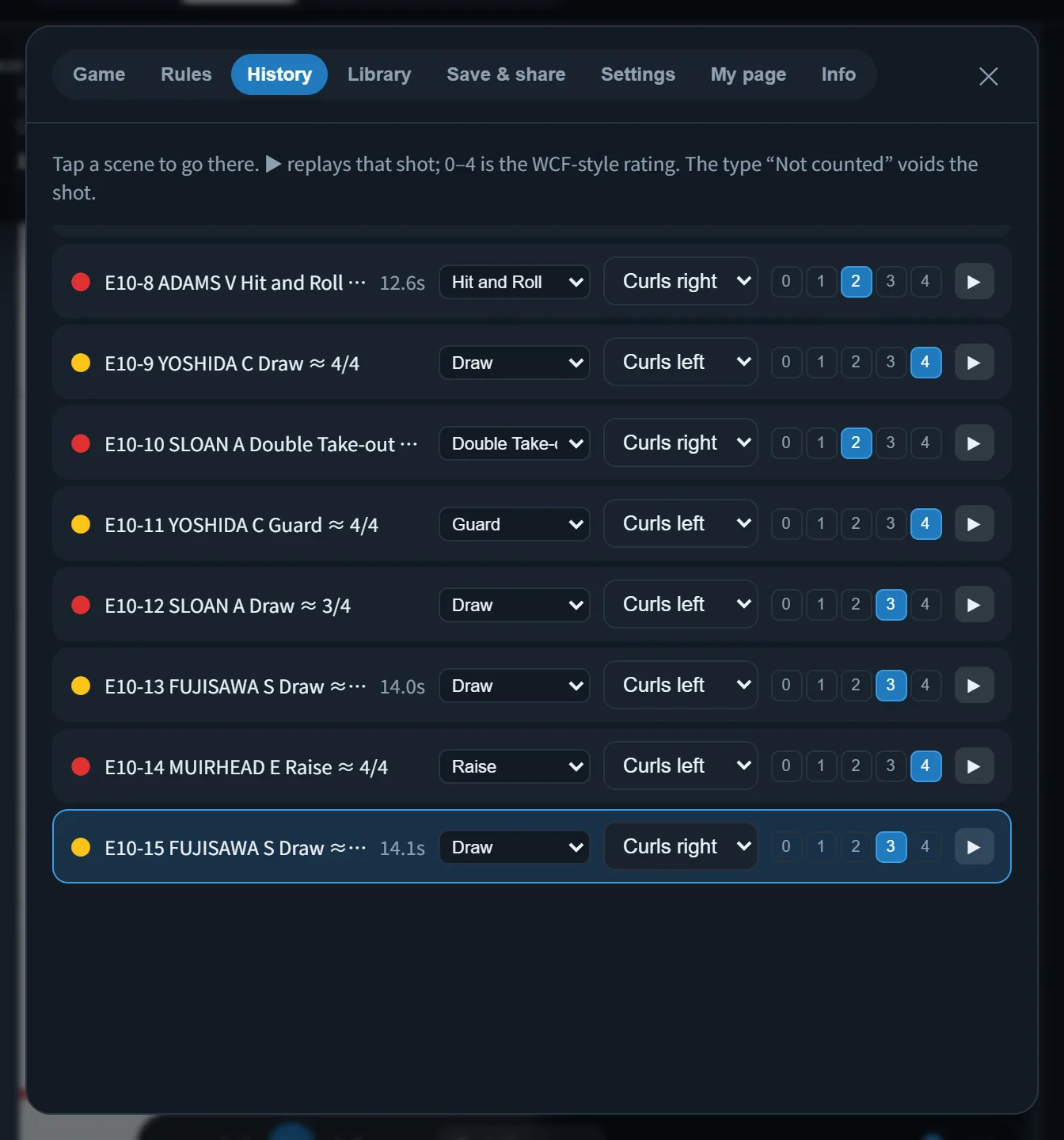
5-5. History
The "History" tab of the menu lists the scenes.
- Tap a scene to go to the board at that point; ▶ replays that shot
- If you throw or move stones in a past scene, you are asked whether to discard the entries recorded after it and continue from there. Say yes to branch the record from that point (to experiment without changing the record, use "Try")
- You can also fix the rotation, type and rating here
5-6. Recording a game from video
While watching a broadcast or a recording, you can record the game by building the board one throw at a time.
- Set the Place panel's purpose to "Record a game" (turns alternate, colors follow the throwing order, and the stones-left count advances)
- Place the one stone that was thrown (don't place a throw that went through the house), then press "Record this layout as a throw"
- Add the rotation (Curls left / No rotation / Curls right) and, if you like, the shot type and rating. For a stone removed for not reaching the hog line, tick "Hog" (on a recorded throw it also removes that throw's stone). "Note" is a memo for editing: it is saved as a PCN comment and is not shown in the history or captions
- For a time-out, press "Time-out" before the team that called it throws (it is recorded for the team to throw next; press again to undo)
- In mixed doubles, press "Standard" under "Positioned stones" at the start of each end: the team with the hammer gets the stone at the back of the house and the other team the guard. "← Power play" and "Power play →" move them to either side and record the power play. The guard distance differs between events (usually 3.18 m), so drag it if needed
- The throwing order in mixed doubles is set per team under "Who throws stones 1 and 5". Teams may swap each end, so it goes back to the default (player 1 throws stones 1 and 5) when the end changes
- When an alternate comes in, press "Substitution…" at the start of that end (before the first stone) and choose the four slots, lead to fourth, for each team. This becomes the throwing order from that end on, and statistics are counted per player. To continue with three players, set one slot to "(none)" (the first two throw three each). Enter alternates' names on the Game tab
- When the ice changes during the game (faster after scraping, for example), press "Ice change…" at the start of that end. The ice settings open with the scope "From end N"; set the hog-to-hog time and curl there. Only throws from that end on use this ice (switch to "Whole game" to correct the ice from the start of the game)
In continuous play, the start of an end with a substitution or an ice change shows "… substitution: name" or "Ice change: …"
To fix things later:
- When you go back to a past scene, the shooter is selected, so you can fix its rotation, type and rating on the spot
- Fixing the rotation does not change the motion (path) that is already attached; it keeps the old rotation. To fix the motion too, throw it again with the scene's "Try" (it uses the rotation you fixed)
- Use "Shooter" to reassign the shooter, and "Before" / "After" to match stones that didn't move to the previous or next scene. Pressing it with the stone that already is the shooter selected unmarks it, and the throw is recorded with the shooter out of play. While recording a game, the shooter of the current throw gets a dotted ring
- To fix where a stone stopped, drag it and press "Update layout". On a past scene you enter Try automatically when you touch a stone. On the latest scene, press "Try" (S) first and then drag (moving a stone without it starts the next throw instead)
- Stones you add, move or remove with "Update layout" are carried to the later throws of the same end, as long as the stone stays where it was (not past the throw that moved it). A guard the video did not show only needs placing once, on the throw that delivered it; removing it on the throw that took it out removes it from the rest of the end
- On a past scene, tap a dashed outline (a stone from before the throw) to bring that stone back in the same colour and place. Use it for a stone the record lost on that throw
- If fixing the last throw of an end changes its score, press "Finish end…" on that scene. The score is counted again from the board, and confirming fixes only that end (the rest of the record stays)
- For a game conceded in the middle of an end, press "Concede…" on the scene of the last throw played. After you confirm discarding the later records, the game ends there. The end is scored by the World Curling rule (if the team with stones still to deliver is counting, those points; if both teams still have stones, X). If the official record differs, fix it with "Finish end…" on that scene
5-7. Place from a photo
"From a photo…" in the Place panel imports stone positions from a photo of the sheet or a broadcast screen.
- Import: "Choose a photo", or use "Capture screen" to share the broadcast tab and capture one frame (Chrome on a computer, for example). If you keep loading images of the same size, the calibration stays and only the stones are re-detected (if the framing changes, redo it with "Detect house" or "Reset")
- Align the reference: "Detect house", or click the left, right, near and far edges of the 12-foot circle in order. Move the reference points until the blue circle sits on the photo, and fix any remaining distortion with "Lens distortion"
- Pick the stones: choose a color and click the center of each stone, or use "Auto-detect". Raise "Sensitivity" if it misses stones — raising it never loses a detection, so it is usually quickest to raise it and click away the extras
- "Place on the board"
- When recording from video, "Record as the result of a throw" makes the imported layout the result of that throw
- "Pin" fixes stones that didn't move, and "Shooter" marks the stone that was thrown. To record the rotation, shot type and rating, choose them in the setup panel before opening the photo dialog
- When the picture shows more than the house (a split-screen broadcast, for example), press "Detect area" and drag a box on the photo; "Detect house" and auto-detect then only look inside it (click without dragging to clear; saved with the calibration). Board stones outside the box stay as they are (the photo only replaces what is inside the box, in both Make a position and Record a game; the kept stones are shown on the photo as dashed rings). When you set the box, auto-detected stones outside it are dropped; stones you placed by hand are kept. When the house moves to another pane on an even end, redraw the box and press "Detect house" again. If detection fails while the calibration carried over from the previous image, that calibration is dropped so you can place the 4 points (a calibration made on this image is kept)
- Save the calibration to one of the two slots (named "Odd ends" / "Even ends" by default; you can rename them when saving) and load it later (one per house for a fixed camera). "Export" writes both to a file
- To keep recording a fixed-camera broadcast, use "Live capture". Share the broadcast tab; while the dialog is open a frame is taken at the chosen interval (5, 10 or 30 s) and the stones inside the box are re-detected. Sharing continues when the dialog is closed, and reopening shows the latest frame (a red dot appears on "From photo…"). No re-detection while a pin or shooter mark is set. When the house moves away from the calibration, capture pauses; fix the calibration and the box, then press Live capture to resume. Press it again, or load an image another way (choose a photo, capture screen, paste), to stop
- Angled photos work too, but at an angle you must also drag the sheet corners (the dark green squares) onto the real corners. The circle alone carries no perspective, so stones more than 3m from the house land about 30cm off (measured)
- Height correction pulls a stone back from the offset caused by its height to its contact point. The steeper the angle, the larger the effect (about 7cm at a 30° tilt, 31cm at 70°)
5-8. Measuring the ice
"Measure…" on the "Rules" tab works out the ice speed and curl from game video. It is an advanced tool for people who transcribe games from video; for everyday play the sliders and preset buttons above are enough.
6. Make a scenario
You can turn a single position (the board plus the end, score, hammer and stones left) into a "scenario" and give it to others. Use it for practice problems or to explain tactics.
- Set the Place panel's purpose to "Build a position" (you can place both colors freely, without turns or rules)
- Arrange the stones
- Press "Make scenario" and set the scenario name (optional), end, score, hammer and stones left. If you leave the name blank, it gets a name like "Scenario 10E 7-5"
- Use "Save the scenario as PCN" for a file, or "Share" for a link
You can only make positions that have a next throw (not at the end of an end or of the game).
7. Save and share
7-1. Autosave
Games are saved in your browser automatically. When you reload, you pick up where you left off.
7-2. Your saves
"Save this game" on the Save & share tab keeps games and scenarios in the list on "My page". The number you can keep is limited.
- Each row has "▶ Open" to carry on where you left off, plus Rename, Export, Share and Delete. Delete only removes it from this device
- The list of shared links has the same buttons; there, Delete withdraws the share (people with the link can no longer open it)
7-3. Shared links
Games and scenarios you made yourself can be turned into a shared link with "Share…" on the Save & share tab (you can send it straight to X or other apps).
- Anyone with the link can open it
- It is stored on the server and deleted 90 days after you share it (opening it does not extend this; sharing the same game or scenario again restarts the 90 days). You can delete it from the device you made it on
- You can change its name with "Rename" in the list of shared links on My page, without changing the link. For a link shared from your saves, renaming the save renames the link too
- Sharing the same game or scenario again does not add a new link (the same link gets the new content)
- Games from the official library are shared with their
?replay=link (3-4), not a shared link (?s=) - If a shared link is inappropriate, you can report it from the same tab when you open it
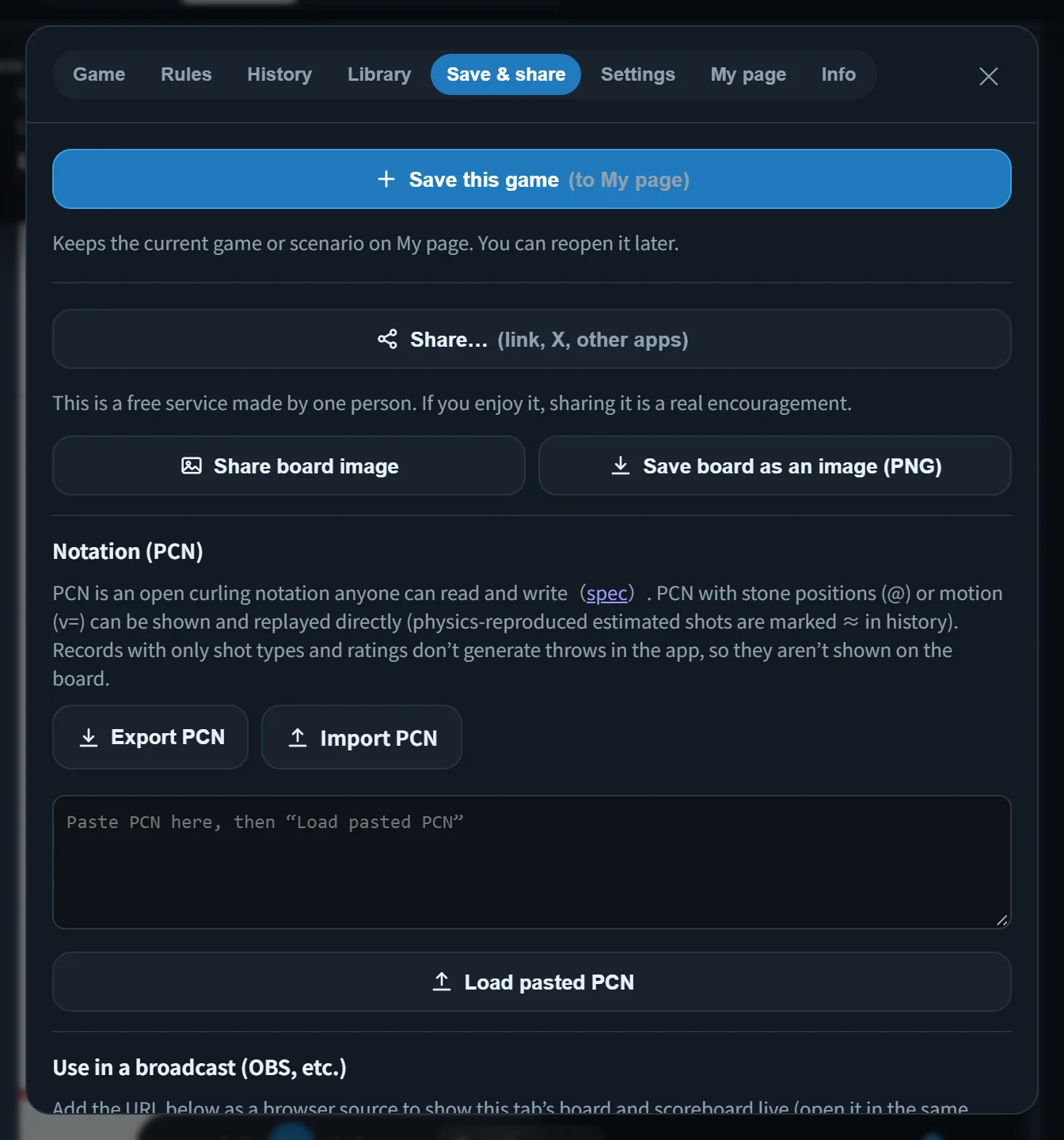
7-4. Images and files
- Share board image: turns the current board into an image you can post to X, or copy a link. If captions are on, they are included in the image
- Save board as an image (PNG): saves it as an image file on your device
- Export / import / paste PCN: the game record file, in an open notation anyone can read and write (the spec is published on GitHub)
8. Streaming (Live and broadcast view)
- "Live" at the top switches to settings for streaming
- Add the broadcast view URL (
?view=broadcast) from the Save & share tab as a browser source in OBS. It shows only the board and scoreboard, synced with the main tab in the same browser - Transparent or chroma-key background:
&bg=%2300ff00 - Flip top and bottom:
&flip=1 - Lane sponsor images (Settings tab): place images at both ends of the sheet, midway between the hog lines and behind the hack
9. Settings
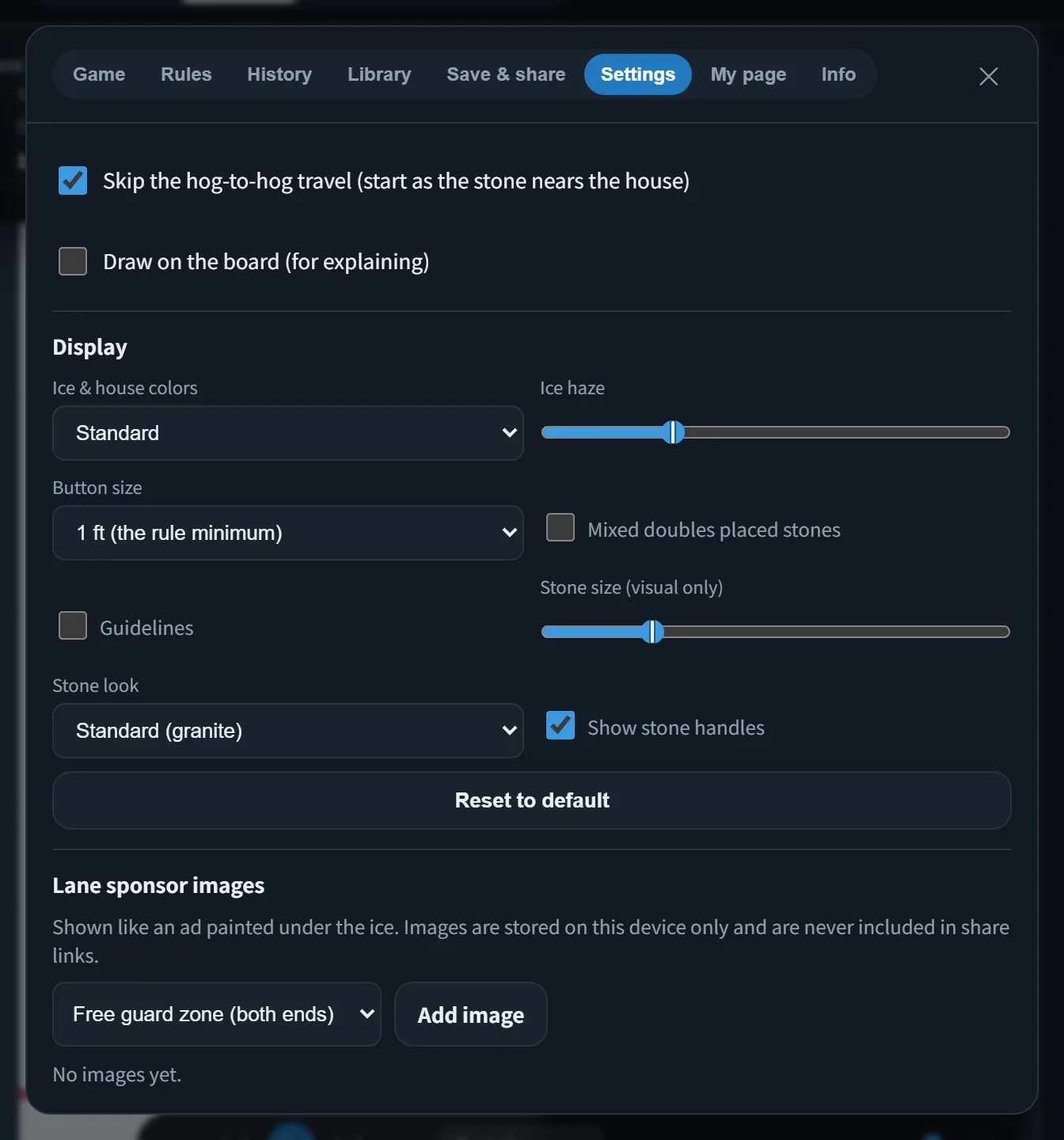
- Display: ice and house color schemes (Standard, Canada, Cortina (blue 12 ft, green 4 ft); Karuizawa (green 12 ft, blue 4 ft); Sapporo (green 12 ft, red 4 ft); Gangneung (teal 12 ft, red 4 ft); Diagram, Monochrome, Custom. the four town names are where those colors are used) and Ice haze (how the paint looks under the ice: 0% is clear ice, 100% looks frosted over). The default is Standard with 25% ice haze.
Also button size (1 ft / 4/3 ft; display only, no effect on scoring), stone look ("Standard (granite)" / "Magnet (tactics board)" / "Diagram (colored discs)" / "Arrow (shows rotation)"; the arrow keeps the turn readable at small sizes, which helps in practice and coaching, and the magnet looks like a whiteboard tactics board), stone size (display only), showing handles, and showing the mixed doubles placed stones and the guidelines - Skip the hog-to-hog travel (on by default; turn it off and the camera follows the stone from the release)
- Sound effects: preview and adjust the hit and slide sounds (weight, hardness, decay, depth, grit, volume), and load your own audio files (mp3, wav)
- Language: 日本語 / English (Info tab, welcome screen)
- Reset all…
On iPhone and iPad, there is no sound while the silent switch is on. There is also no sound until your first tap, so if you hear nothing, tap the sound button or a sound preview once.
10. Keyboard shortcuts
Press ? at any time to open the list.
| Key | Action |
|---|---|
どこでも | null |
K | Skip the current animation |
+ / - | Playback speed |
V | Switch view (Full → Hog → House → Eye) |
F | Flip the sheet vertically (in the eye view: the skip’s view) |
T / J | Trails / captions |
↑ / ↓ | Raise or lower the eye height in Eye view (in a match the arrows move the broom) |
M / I / ? | Menu / about / this help |
作戦盤・リプレイ | null |
Space | Play / pause continuous playback |
← / → | Previous / next scene |
Home / End | First / latest scene |
P | Show / hide the playback controls |
C | Compare with before the throw |
R | Real (hide predictions, numbers and other aids) |
作戦盤 | null |
1 / 2 / 3 | Place / drag throw / aim & throw modes |
Q / W / E | Curls left / no rotation / curls right |
Enter | Throw in aim & throw |
Z | Undo one shot (Ctrl+Z works too) |
U | Update the throw you tried |
S / G | Try / suggest shots |
Shift / Ctrl | Fine-tune while dragging (stone, aim, weight sliders; Ctrl is finer still) |
対戦 ─ 投げる前 | null |
↑ / ↓ / ← / → | Move the broom |
1〜6 | Weight (Guard to Peel) |
Q / E | Counter-clockwise / clockwise |
Enter | Throw |
R | Watch that shot again |
対戦 ─ 走っている間 | null |
Space | Just sweep (keep the current call going) |
1 | Whoa (the effect stops at once) |
2 / 3 / 4 | Hold / carry / curl |
5 | Skip sweeps (their stone past the tee) |
Frequently asked questions
Is it free? Do I need to sign up?
It's free, and you don't need to sign up or install anything
Does it work on a phone?
Yes. It works on phones, tablets and computers
Are the stone positions in replays accurate?
Public records don't include coordinates, so the positions are estimates rebuilt with physics from positions read off the diagrams and from the shot records. They can be off by a few cm. In "Video-verified" games, every throw has been checked against video
Can I share my own games?
Yes, with a shared link (kept for 90 days after you share it). You can also send a file (PCN) or an image
Can I use it on a stream?
Add the broadcast view (?view=broadcast) as a browser source in OBS
Where is my data stored?
In your browser. A game is stored on the server only when you create a shared link for it
What's the data format?
PCN, an open notation anyone can read and write. The spec is published on GitHub
I'm not sure how to use it
Start by playing a game from the library. The logo at the top left opens the welcome screen again
Which way of throwing do you recommend?
"Aim & throw" is closest to a real game; for a quick try, use "Drag throw"
How do I turn sound off, or why is there no sound?
Toggle it with the sound button on the board or "Play sound effects" in Settings. There is no sound until your first action
Do the stones move like real ones?
They are calculated with the official dimensions and with ice speed and curl measured from video. The way stones curl is matched to paths measured from Olympic and Japanese broadcasts: little curl before the hog line, then most of it just in front of the house. Sweeping is in Match mode only; the board and replays assume no sweeping
Can I use it in English?
Yes. Switch with "English" on the Info tab or the welcome screen
Where can I see what changed in an update?
"News" on the Info tab shows the latest notice again (if you have visited before, it also appears once the first time you open the app after an update)
Where do I send feedback or report a bug?
The Info tab has a "Share and feedback" block with a link to the feedback form (in Japanese). Reports of mistakes in the records are welcome too
Start by replaying a real game. From any position, you can take over and throw.
Open CurlFlux Game library